
To effectively search for specific email messages in RoundCube, follow these detailed steps to enhance your email management experience:
-
Access RoundCube: Begin by logging into your RoundCube email account using your username and password. Ensure that you have a stable internet connection to avoid any interruptions during the process.
-
Locate the Search Box: Once you are logged in, direct your attention to the search box, which is typically located at the top of the interface. This is where you will enter the search term related to the email you are trying to find.
-
Enter Your Search Term: Type in a keyword or phrase that you believe is contained in the email you are looking for. For instance, if you remember the sender’s name or a specific topic discussed in the email, use that keyword. After entering the term, press the
<Enter>key on your keyboard. -
Review Search Results: RoundCube will search through all messages in your Inbox for the specified term. For example, if you searched for "jim," RoundCube will display any emails that contain that keyword, highlighting them for your convenience. You may also find that your search results include emails from other folders, such as Sent or Drafts, depending on your search settings.
-
Refine Your Search: If you do not find what you are looking for initially, consider refining your search term. You can try using different keywords or phrases that may be more relevant to the email's content. This may help you locate the desired message more effectively.
-
Clear the Search Box: If you wish to start a new search, you can easily clear the search box. Simply click on the "X" icon located within the search area to erase your previous query, allowing you to enter a new term without any confusion.
-
Utilize Related Features: In addition to searching for messages, RoundCube offers various features that can enhance your email management. For instance, you can learn how to edit your preferences, mark messages as read or unread, open emails to read or respond to them, and save drafts for later. Each of these functionalities can improve your overall efficiency when handling emails.
-
Practice Regularly: The more you practice using the search function in RoundCube, the more adept you will become at quickly locating important emails. Familiarizing yourself with the interface and its features can significantly streamline your email management tasks.
By following these steps, you can effectively search for messages in RoundCube, ensuring that you can quickly find important communications when needed. If you encounter any difficulties, don't hesitate to consult the knowledge base or reach out for support to resolve any issues. Understanding how to efficiently search for messages will empower you to manage your email correspondence with greater ease and confidence.
Now let's learn how to search for specific email messages
1) This is the search box. Enter a term you wish to search for, then press <enter>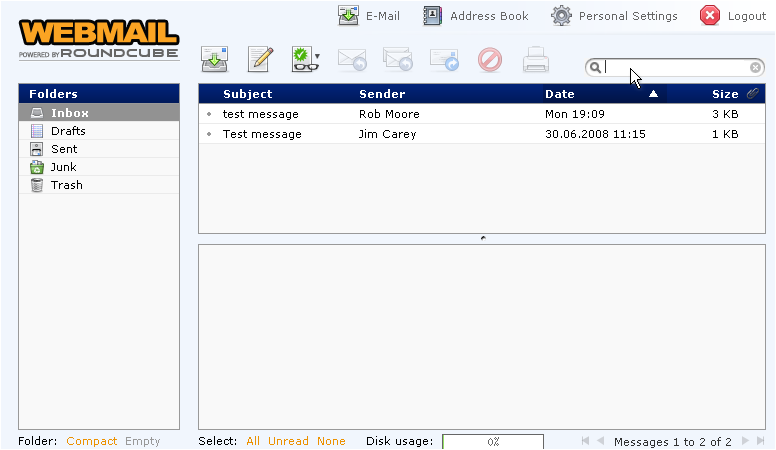
RoundCube searched all messages in the Inbox for the word "jim" and found one match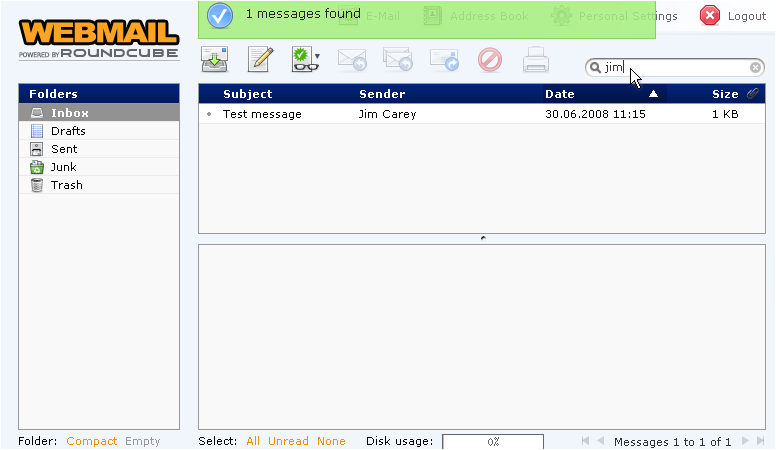
You can just as easily search for messages in other folders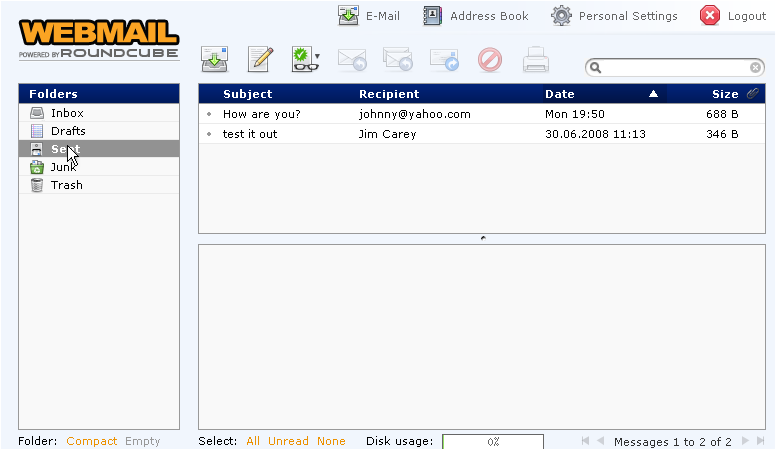
RoundCube found one match in the Sent folder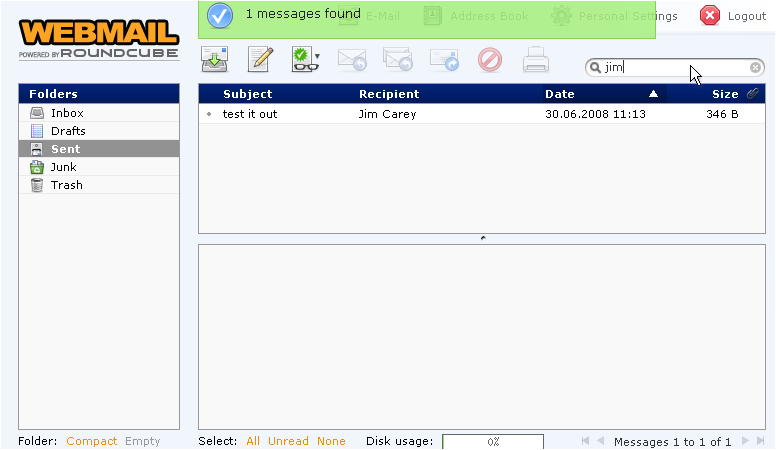
2) To clear the search box, click the X icon here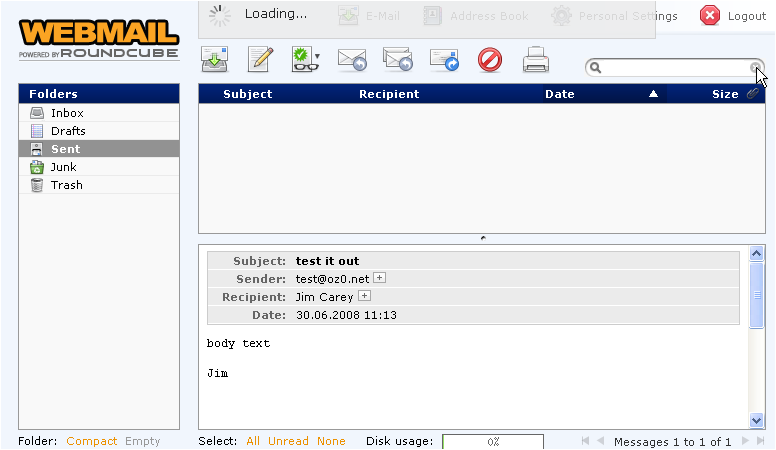
This is the end of the tutorial. You now know how to search for messages in RoundCube
