
Apple Mail makes it easy to import your data from other e-mail clients.
Transferring your email data from one email client to another can seem daunting, but Apple Mail simplifies this process significantly. If you're moving to Apple Mail from another email program, here’s a step-by-step guide to help you import your data seamlessly:
1) Go to File... and click Import Mailboxes.
Begin by launching the Apple Mail application on your Mac. Ensure that it is updated to the latest version for optimal performance and compatibility.
Click on the File menu located in the top left corner of your screen. From the dropdown menu, select Import Mailboxes. This action initiates the process of importing data from another email client.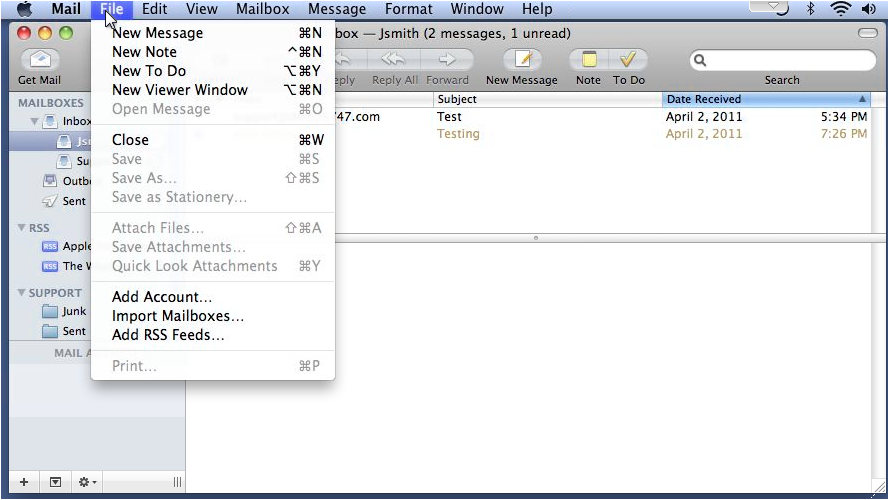
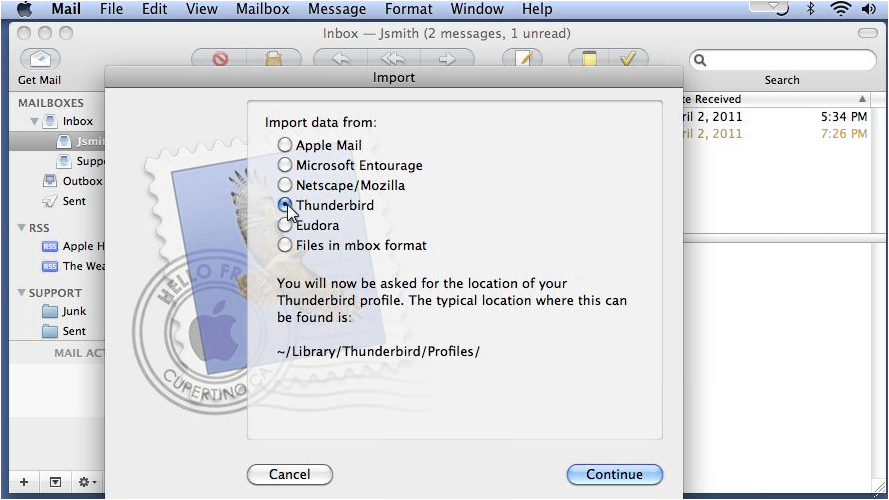
2) Choose the program from where you're importing data... then click Continue.
You will be prompted to choose the program from which you are importing your data. This could be an email client like Microsoft Outlook, Thunderbird, or any other supported application. Once you make your selection, click Continue to proceed.
3) Browse for the location of your profile... then click Choose.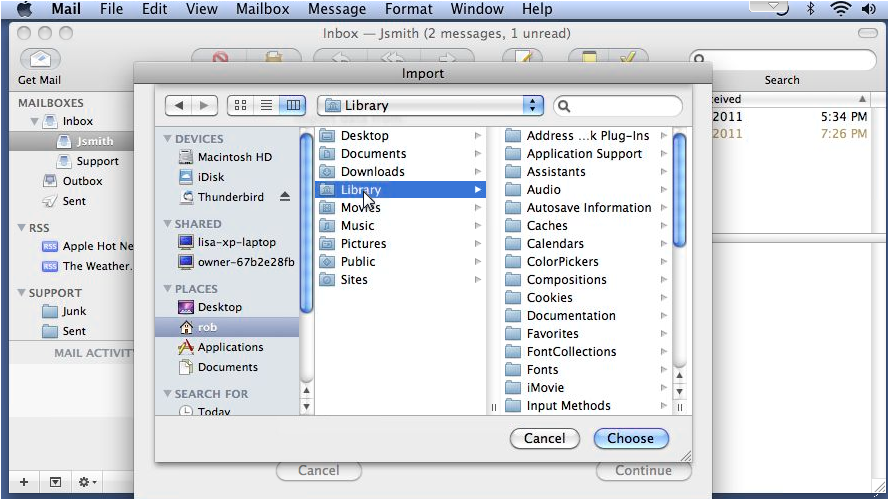
4) Select the items to import and click Continue.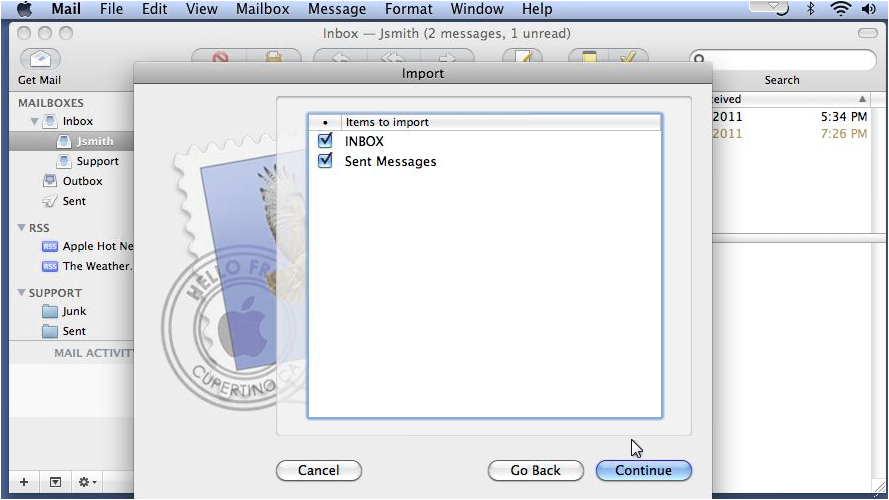
5) Then click Done.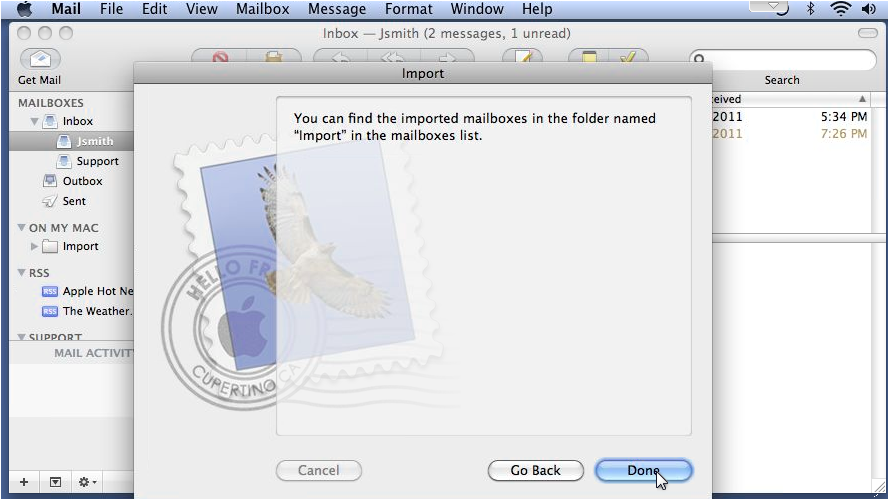
6) The new items can be found in the Import folder.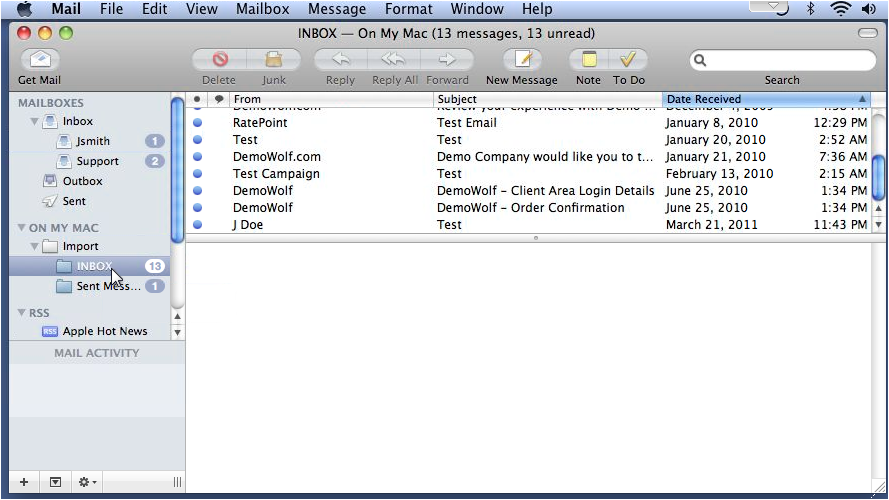
That's it! Now you know how to import data from other e-mail programs.
Benefits of Importing Email Data
Importing email data into Apple Mail not only consolidates your communications but also allows you to take advantage of Apple Mail's features. Here are some benefits of using Apple Mail:
-
User-Friendly Interface: Apple Mail offers an intuitive interface that makes managing emails simple and efficient. You can easily navigate through folders, search for emails, and organize your messages with labels and smart mailboxes.
-
Integration with Apple Ecosystem: If you use other Apple products, such as an iPhone or iPad, Apple Mail integrates seamlessly with these devices. This allows for easy synchronization of your emails across all your devices, ensuring that you have access to your communications anytime, anywhere.
-
Enhanced Security Features: Apple Mail comes with built-in security features that help protect your emails from unauthorized access. It supports encryption and other security protocols, giving you peace of mind when managing sensitive information.
-
Organizational Tools: With features like smart mailboxes, rules, and tags, Apple Mail helps you keep your inbox organized. You can create custom rules to automatically sort incoming emails, making it easier to manage your communications effectively.
By following these steps, you can successfully import your email data from other email clients into Apple Mail, ensuring a smooth transition and continued access to your important communications. If you encounter any issues during the process or have further questions, consider exploring related articles in the knowledge base or reaching out for support. This will help you make the most of your email management experience in Apple Mail.
